
Do Not Disturb on Android: let one app through, and make the rest truly silent
By the Message Alarm team · Updated · 7 min read
To let one app bypass Do Not Disturb on Android, open Settings, tap Modes, pick Do Not Disturb, open Notification filters, then Apps, and add the app. On older versions the screen is called Do Not Disturb rather than Modes, and some phones word it differently, so search Settings for “Do Not Disturb” if you can’t find it.
That works, with one big catch: the app you allow gets through with everything it sends. Allow WhatsApp and every group chat rings at 2 AM. If what you really want is a silent phone where only certain people and words still alert you, that needs a filter Android doesn’t have, and this guide covers one. It is all Android; iPhone uses Focus instead.
What do silent, vibrate and Do Not Disturb each block?
People use the three words as if they meant the same thing. They don’t, and the difference decides which fix will work for you.
| Silent | Vibrate | Do Not Disturb | |
|---|---|---|---|
| Calls | No sound | Vibrate only | Silent, except people you allow |
| Notification sounds | No sound | Vibrate only | Silent, except apps and people you allow |
| Your alarm clock | Rings | Rings | Rings, because alarms are allowed by default |
| Exceptions you can set | None | None | People, apps, alarms and other interruptions |
| Schedules | No | No | Yes, on most phones |
The row that matters is the fourth one. Silent and vibrate are volume levels with no exceptions at all. Do Not Disturb is the only one of the three you can teach.
How do I allow one app through Do Not Disturb?
On stock Android, and on phones that follow it closely:
- Open Settings and tap Modes (or Do Not Disturb on older versions).
- Pick the Do Not Disturb mode, or any other mode you use, such as one for sleep.
- Open Notification filters, then Apps.
- Add the app you want to hear, and go back.
While you are there, look at Alarms & other interruptions. That is where alarms, media and touch sounds are allowed or blocked. Leave alarms on unless you have a reason not to. Google’s own walkthrough is on Android Help: Modes and Do Not Disturb, and it notes that settings can vary by phone.
For people rather than apps, use the People filter in the same screen. Our guide on making certain contacts ring on silent walks through starred contacts and why chat messages behave differently from calls.
Why do exceptions still let the noise through?
An app exception is all or nothing. Android sees “WhatsApp” and lets WhatsApp make sound. It doesn’t know that you meant your partner and your boss, and not the 200-person neighbourhood group or the sticker war in the family chat.
Some apps split their notifications into categories you can switch off one by one, and some chat apps separate group messages from one-to-one chats this way. If yours does, silencing the group category helps. It still can’t tell one person from another, and it can’t tell “urgent” from “lol”.
So here is a plain opinion: letting a whole chat app through Do Not Disturb is usually worse than not using Do Not Disturb at all. You get the same noise, plus the false sense that the phone is quiet. Exceptions are great for single-purpose apps (a baby monitor, a hospital pager app, a work alerting tool) and poor for anything chatty.
What is Quiet mode?
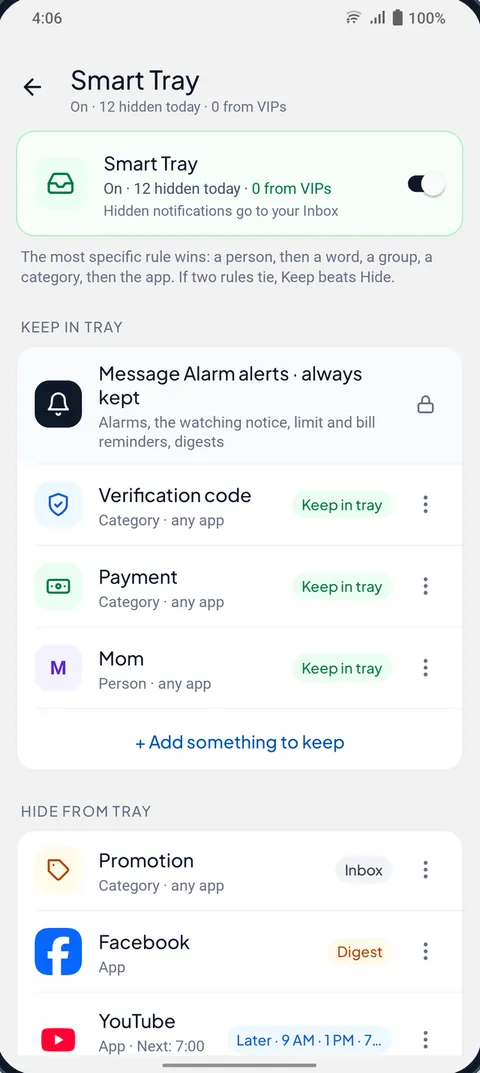
Quiet mode makes your phone really silent with its own Do Not Disturb rule, and Message Alarm alerts only what you keep. It is part of Smart Tray in Message Alarm, a free Android app, and it can filter by person and word, which an app exception never can.
In practice, when Quiet mode is on, these still make a sound: chats with people (one-to-one chats; a group message only alerts if it @mentions you), the Keep rules you set in Smart Tray, your VIP people, messages with one of your urgent words, and anyone who writes 3 messages in 5 minutes. Everything else stays silent. It isn’t deleted or hidden; it sits in the notification bar as usual, just without the sound.
If you want the tray itself tidier, Smart Tray can also move promotions and noisy apps to an Inbox in the app, and Busy groups can keep only the messages that @mention you or reply to you. Both are covered in cleaning up the notification bar and muting a group chat but keeping mentions.
A few details that matter if you have used Do Not Disturb for years. Quiet mode needs Smart Tray to be on and needs Do Not Disturb access, which Android only gives to apps you approve. It never changes a Do Not Disturb you already set yourself. And switching Quiet mode or Smart Tray off ends it at once, so you are never stuck in silence because of a setting buried in an app.
Will my alarm clock and calls still ring?
Your alarms will. In Quiet mode, alarms are locked on: your clock alarms ring, and so do Message Alarm’s own alarms. There is no switch to get that wrong.
Calls are a choice. A switch called Calls from starred contacts and repeat callers is on by default. With it on, the people you starred in Contacts can ring you, and so can anyone who calls twice in a short time. Other calls stay silent, which is usually the point.
With Android’s plain Do Not Disturb, the picture is similar but you set it yourself: alarms are allowed by default, and calls follow whatever you chose under People. Message Alarm’s app alarms play on the alarm sound, so they ring through Do Not Disturb when alarms are allowed (the Android default). If you have set Do Not Disturb to block alarms too, they are blocked as well.
How do I set up Quiet mode?
It takes a few minutes, most of it spent on Smart Tray the first time.
- Install Message Alarm and allow Notification access when it asks.
- Turn on Smart Tray. The Clean my tray set-up suggests starting rules from your last 7 days of notifications in about a minute.
- Open Quiet mode and tap Allow to give Message Alarm Do Not Disturb access.
- Pick when it runs: Sleep (11 PM to 7 AM), Work (9 AM to 6 PM on your work days), Always, or Custom.
- In Smart Tray, add your VIP people and check the list of urgent words.
- Leave Calls from starred contacts and repeat callers on, and star those people in your Contacts app.
Then test it. Turn Quiet mode on with the Always schedule, ask someone to send you an ordinary message and then one with an urgent word, and listen. Switch to your real schedule afterwards.
One thing to check if alerts arrive late or not at all: some phones close apps in the background to save battery. Message Alarm shows a Fix background issues card with the battery and auto-start settings for your phone, and Smart Tray warns on the Home screen if Android paused it for 30 minutes or more.
Which should you use: an app exception or Quiet mode?
| You want | Android app exception | Quiet mode |
|---|---|---|
| Hear one single-purpose app | Good fit | Works, but more than you need |
| Hear people in WhatsApp, not the groups | Can’t tell people from groups | One-to-one chats alert; groups only for @mentions |
| Hear “urgent” from anyone | No | Yes, urgent words get through |
| Silence everything at night, keep alarms | Yes, that is plain Do Not Disturb | Yes, alarms locked on |
| Starred contacts’ calls | Yes, via People | Yes, on by default |
| Cost | Built in | Free and unlimited |
If a single message from one person needs to wake you, not just make a sound, a ringing alarm is a different tool from Quiet mode. Family mode does that for chosen names; see the Emergency Bypass for Android guide.
Is Message Alarm free?
Yes, with no ads and no in-app purchases. Smart Tray and Quiet mode are free and unlimited, as are saved and deleted messages, notification history, the spending tracker, bill reminders and the smart features such as Family mode and Find My Phone. The only limits are on app alarms: 2 watched apps, 3 alarms a day and 15 a week, and 2 auto-replies a week. Your messages are checked on your phone and are never uploaded. It runs on Android 7.0 and later, and there is no iPhone version.
Questions people ask
How do I let one app bypass Do Not Disturb?
Open Settings, tap Modes (Do Not Disturb on older versions), pick Do Not Disturb, open Notification filters, then Apps, and add the app. Menu names vary by phone, so search Settings for “Do Not Disturb” if you can't find it.
Does Do Not Disturb block WhatsApp messages?
Yes, unless you allow WhatsApp as an app exception or the sender gets through a People filter. Allowing the whole app lets every chat and group through, which is why Quiet mode in Message Alarm filters by person, @mention and word instead.
What's the difference between silent and Do Not Disturb?
Silent turns the ringer and notification sounds off with no exceptions. Do Not Disturb is a filter: the ringer stays up and only the people, apps and alarms you allow make a sound. Alarms ring in both by default.
Will my alarm clock still ring in Quiet mode?
Yes. In Quiet mode alarms are locked on, both your clock alarms and Message Alarm's own alarms. Calls from starred contacts and repeat callers can ring too, with a switch that is on by default.