
How to clean up your Android notification bar without missing anything
By the Message Alarm team · Updated · 7 min read
To clean your Android notification bar without missing anything, decide what has earned a place in the tray (people, codes, payments, deliveries) and send everything else somewhere you can still read it later. Android’s own settings can silence or switch off notifications app by app; Smart Tray in Message Alarm moves the rest to an Inbox instead of throwing it away.
This is an Android guide. iPhones don’t let apps read other apps’ notifications, so none of the app part works there.
Why does the notification bar fill up so fast?
Open the shade on a busy afternoon and count. Most of what you see isn’t from people. It’s a shopping app’s “Flash sale ends tonight”, the same flash sale again three hours later, a game reminding you about free spins, two news alerts, a social app telling you someone posted, and a school parents’ group that has been going since breakfast. The message from your sister is in there too, somewhere around item fourteen.
Android gives all of these the same weight. Each one gets a row, most get a sound, and swiping one away deletes it for good. The obvious fix, turning an app’s notifications off, has a catch: the shop that sends offers also sends “Your parcel is out for delivery”, and the wallet that pushes cashback deals also tells you when money arrives.
Here is the opinion part. Swiping the whole shade clear every morning is a worse habit than living with the clutter. It trains your thumb to dismiss without reading, and that is exactly how the one message that mattered disappears.
What can Android do on its own to tidy notifications?
Before installing anything, try the tools your phone already has. They are free and often enough for one or two noisy apps.
- Notification categories. Since Android 8, apps can split their notifications into categories, such as “Promotions” and “Order updates”. Long-press a notification and open its settings to see them, then switch off only the noisy one. This works when the app made separate categories. Plenty of apps put everything in one, which leaves you with all or nothing.
- Silent notifications. You can mark an app or a category as silent. It still shows in the tray, without a sound, usually lower down. Quieter, but not tidier.
- Snooze pushes one notification away for a while and brings it back. Handy for a single reminder, tedious for forty offers. On some phones you have to switch it on first: open Settings and search for “snooze”.
- Notification history. If you swipe something away by mistake, Android’s notification history can show it again, as long as you turned the history on beforehand. Open Settings and search for “Notification history”.
Google describes these options in its Control notifications help page. Menu names vary by phone maker and Android version, so searching Settings is faster than following a fixed path.
The limit of all four is the same. They work per app, or per category when the app bothered to make one. None of them can say “keep payments from this wallet but hide its offers” when both arrive through the same channel.
What is Smart Tray, and where do hidden notifications go?
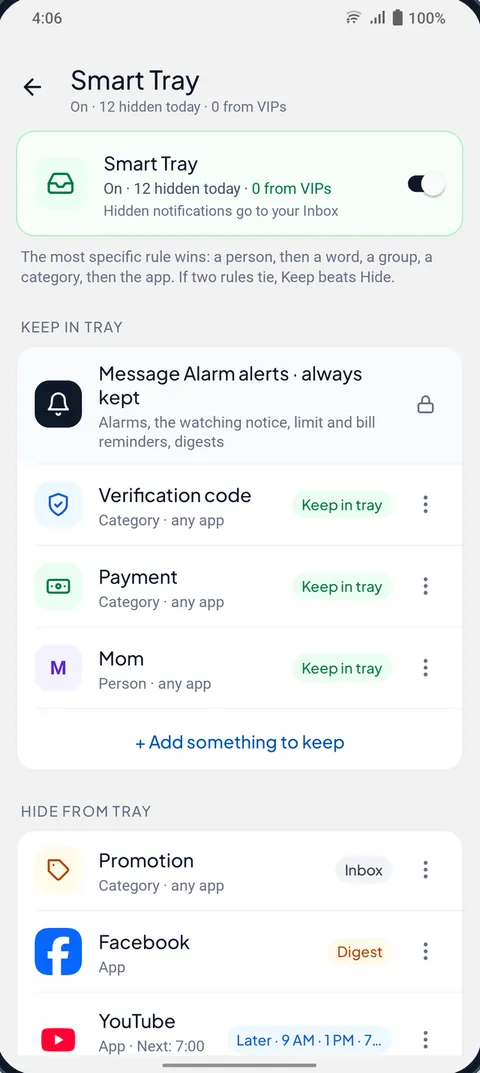
Smart Tray keeps only the notifications you choose in your notification bar and moves the rest to an Inbox in Message Alarm, so nothing is lost. It is free, off until you turn it on, and works by reading notifications as they arrive, on the phone.
Each rule picks a target (an app, a person, a word, a group or a category such as Promotions or Payments) and an action:
- Keep in tray, for what you want to see straight away.
- Hide, which moves it to the Inbox.
- Deliver later, which brings it back to the tray at times you pick, or Digest, which rolls everything held into one summary notification. Both are covered in the notification digest guide.
The Inbox shows each hidden notification with the reason it was moved, such as “Promotion · discount words” or “Busy group · not @you”. You can search it, and from there tap Always keep or Never show, with Undo if you tap the wrong one. Hidden items stay for 90 days by default, or for as long as you like. The text never leaves your phone.
How do you set up “Clean my tray” in 60 seconds?
The set-up is the quickest way in, because it builds the first rules from your own notifications instead of a blank screen.
- Install Message Alarm from Google Play, open it and tap Smart Tray.
- Allow Notification access when Android asks. Smart Tray can’t sort what it can’t see.
- Start “Clean my tray”. It looks at the last 7 days of your notifications and ticks what to keep and what to hide.
- Check both lists. Untick anything you want left alone, such as a game you actually play.
- Tap “Try it for 1 day” to see what would have been hidden, or “Turn on now” if the lists look right.
If you installed the app today, there is little history to learn from. In that case it starts with sensible defaults (keep verification codes, payments, deliveries and calls; hide promotions) and offers more once it has seen a few days.
The 1-day trial is worth doing. Nothing is hidden while it runs. At the end you see what would have gone to the Inbox and what would have stayed, with a “Keep this instead” option on anything that surprised you. Smart Tray doesn’t start hiding by itself after the trial; you turn it on when the list looks right.
What is never hidden, and what always gets through?
Some notifications are off-limits for every rule: Message Alarm’s own alerts, calls, alarms, ongoing notifications (music, navigation) and system notifications. They stay in the tray whatever you set.
On top of that, three breakthroughs are always kept, even if a rule would hide them. A VIP person, by name. A message with one of your urgent words (the list is editable). And the same person writing 3 times in 5 minutes in a one-to-one chat, which usually means they need you now.
Chat apps get extra care. Smart Tray never suggests hiding a chat app or a person’s chat. Its “Quiet chatty chats” setting never applies to WhatsApp, Telegram, Messenger, Signal or Viber. Group messages only move if you turn on Busy groups, which keeps your @mentions and replies (see muting a group but keeping mentions), or if you write a rule for them yourself. A rule you create can hide anything except the never-hidden list above, so that choice stays yours.
Which rule wins when two rules disagree?
The most specific rule wins: a person, then a word, then a group, then a category, then the app. On the same level, Keep beats Hide. That one sentence explains every result in the table below.
| Your rules | Notification | Where it goes | Why |
|---|---|---|---|
| Keep bKash + Hide promotions | bKash: a weekend cashback offer | Inbox | Category beats app |
| Keep bKash + Hide promotions | bKash: money received | Tray | A payment isn’t a promotion, so “Keep bKash” decides |
| Hide Daraz + Keep verification codes | Daraz: your login code | Tray | Category beats app |
| Hide Daraz + Keep deliveries | Daraz: parcel out for delivery | Tray | Category beats app |
| Hide Daraz + Keep deliveries | Daraz: 11.11 sale starts now | Inbox | Only the app rule matches |
| Busy groups on + Keep the word “exam” | Parents’ group: “Exam routine changed” | Tray | A word rule is checked before Busy groups |
In practice this means you can be blunt with app rules. Hide a shop entirely, keep codes and deliveries as categories, and the useful parts of that shop still reach you.
How do you keep the tray clean after the first week?
Two things do most of the upkeep. Hide repeats, which is on by default, sends near-identical notifications from the same app within 24 hours to the Inbox, so the third copy of one flash sale never shows. It leaves codes, payments, calls, deliveries and people’s messages alone. The guide to stopping promotional notifications goes deeper on offers.
After a few days, Smart Tray also starts suggesting rules, learned on the phone from what you tap, swipe and reply to (counts only, never the text). Nothing changes until you tap Apply, and “Not now” hides a suggestion for 30 days.
If you’re comparing tools, the post on BuzzKill and FilterBox alternatives sets Smart Tray against the dedicated notification managers.
What does Message Alarm cost?
Message Alarm is a free Android app that rings a loud alarm, even when your phone is on silent, when an important message arrives from a person or with a word you choose. Smart Tray and Quiet mode are free and unlimited, as are saved and deleted messages, notification history, the spending tracker, bill reminders and the smart features. The free plan limits only the alarm side: 2 watched apps, 3 app alarms a day and 15 a week, and 2 auto-replies a week. There are no ads, and your messages are checked on your phone and never uploaded.
Questions people ask
How do I stop my notification bar from being full?
Keep only people, codes, payments and deliveries in the tray and move the rest somewhere you can read later. Android lets you switch off or silence notification categories app by app; Smart Tray in Message Alarm moves offers, repeats and noise to an Inbox instead of deleting them.
Will I miss messages if notifications are hidden?
No, hidden notifications go to Smart Tray's Inbox with the reason they were moved, and you can search them. VIP people, your urgent words and the same person writing 3 times in 5 minutes always stay in the tray, and calls, alarms and system notifications are never hidden.
Does Smart Tray hide WhatsApp chats?
Not on its own. It never suggests hiding chats and never quiets bursts in chat apps like WhatsApp, Telegram or Messenger. Group messages are only moved if you turn on Busy groups (which keeps your @mentions and replies) or make a rule yourself.
Is Smart Tray free?
Yes, Smart Tray is free and unlimited, with no ads. The only free-plan limits in Message Alarm are on the alarm side: 2 watched apps, 3 app alarms a day and 15 a week, and 2 auto-replies a week.